Chapter 1
Getting started
Drone Pilot ADS-B shows the manned aircraft and drones around you on a map and calls them out by voice, so you can keep your eyes on your own aircraft. It gets that traffic from a pilotADSB receiver, from a live feed someone else is sharing, or from a recording.
This chapter covers the first time you open the app: the safety acknowledgement, the permissions Android asks for, and the screen where you choose where your traffic comes from.
1.1Before your first flight
You need three things:
- The app, installed on an Android phone or tablet.
- A pilotADSB receiver, powered on and within Bluetooth range. Without one you can still use the map, the airspace and weather layers, and recordings. Live traffic needs a receiver or a live feed.
- A license for live ADS-B traffic. A pilotADSB receiver comes with one year free. Everything else in the app is free. See Licenses and subscriptions.
The first time you open the app it takes you through these screens, in this order:
- The Pilot Responsibility & Safety Acknowledgement.
- Android's permission questions: location, nearby devices and notifications.
- Select Data Source, where you choose how this session gets its traffic.
After that you're on the map. What you see on the map explains what you see there.
Warning
Drone Pilot ADS-B is for situational awareness only. It doesn't replace seeing and avoiding other aircraft, and many aircraft and drones don't broadcast at all.
1.2The safety acknowledgement
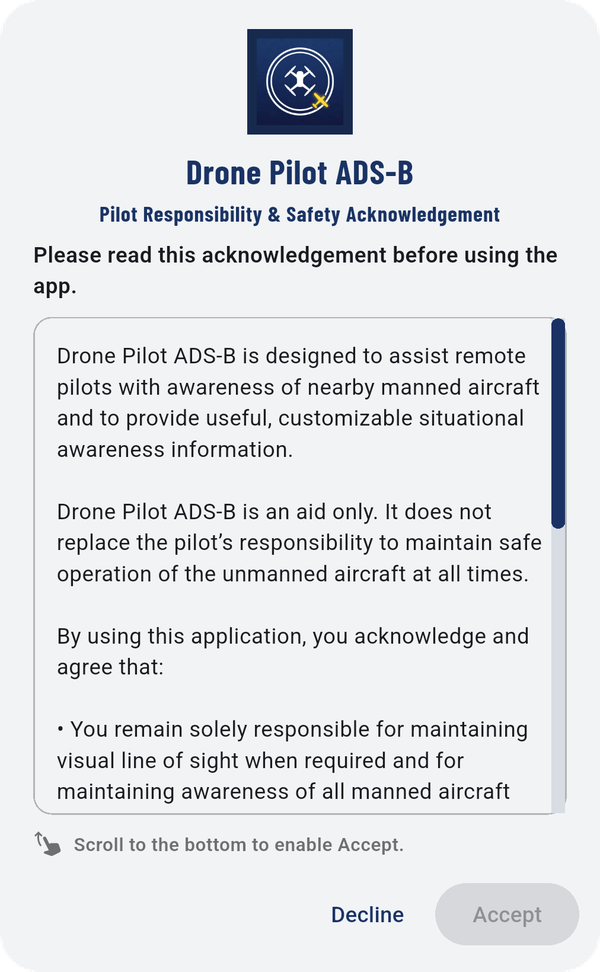
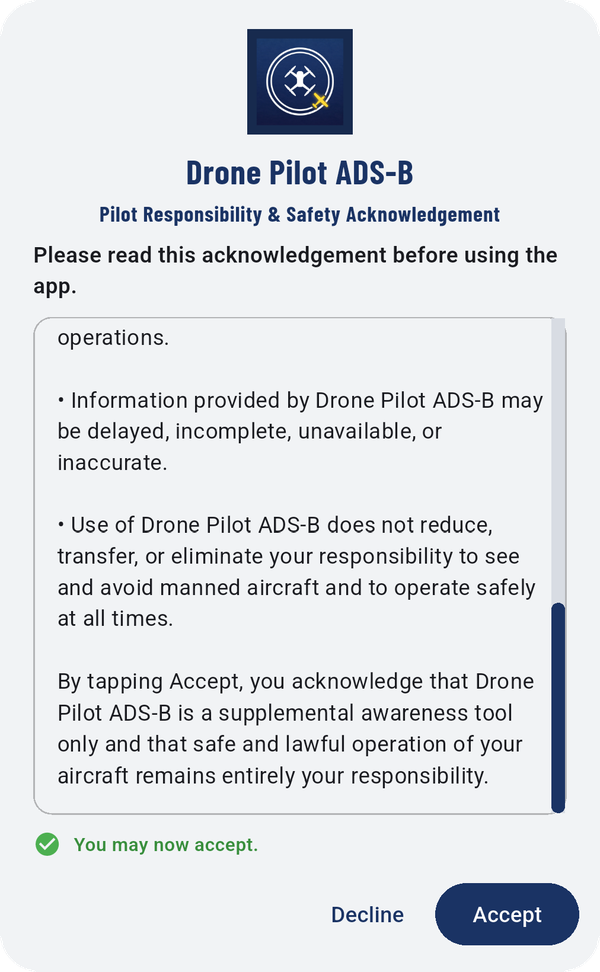
The first screen asks you to read and accept the Pilot Responsibility & Safety Acknowledgement.
- Read the text in the box, scrolling to the end.
- When you reach the bottom, the line under the box changes from Scroll to the bottom to enable Accept. to You may now accept.
- Tap Accept.
If you tap Decline, the app closes.
1.3The permissions Android asks for
Android asks you to allow a few things the first time the app needs them. Allow each one, or parts of the app won't work.
| Permission | What the app uses it for |
|---|---|
| Location | Your position on the map, distances to traffic, and the receiver's GNSS backup. |
| Nearby devices | Finding and connecting to your receiver over Bluetooth. |
| Notifications | Keeping alerts running when the screen is off or the app is in the background. |
| Microphone | Only if you record with audio turned on. |
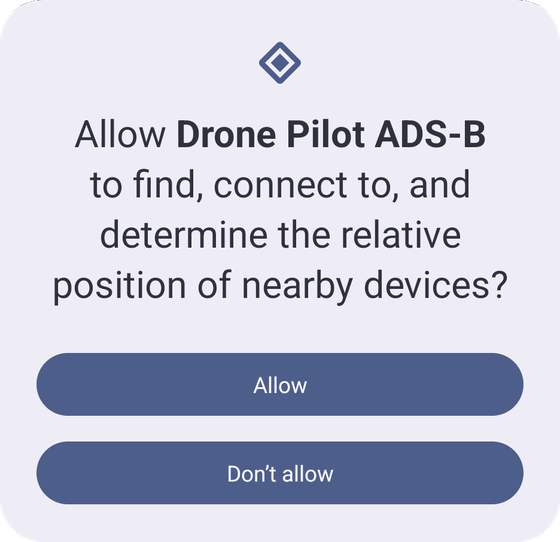
If you said no by mistake, open Android Settings → Apps → Drone Pilot ADS-B → Permissions and turn it on there.
1.4Choose where your traffic comes from
Select Data Source asks "How will this session receive ADS-B data?" Pick one:
| Choice | What it does |
|---|---|
| Establish ADS-B Connection | Connects to your pilotADSB receiver by Bluetooth, WiFi + Bluetooth, WiFi only, or Direct. See Connect to your receiver. |
| Watch a Live Feed | Shows traffic from a receiver somewhere else, over the internet, by its stream ID. See Watch a live feed. |
| Start or manage a live feed you share | Opens My Live Feeds. See Start a live feed. |
| Map Only Mode - No ADS-B | The map with obstacles, TFRs, LAANC, weather and more, but no live traffic. |
| Playback Data — Demo Mode | Replays a recorded flight. A good way to learn the app at your desk. See The Playback Library. |
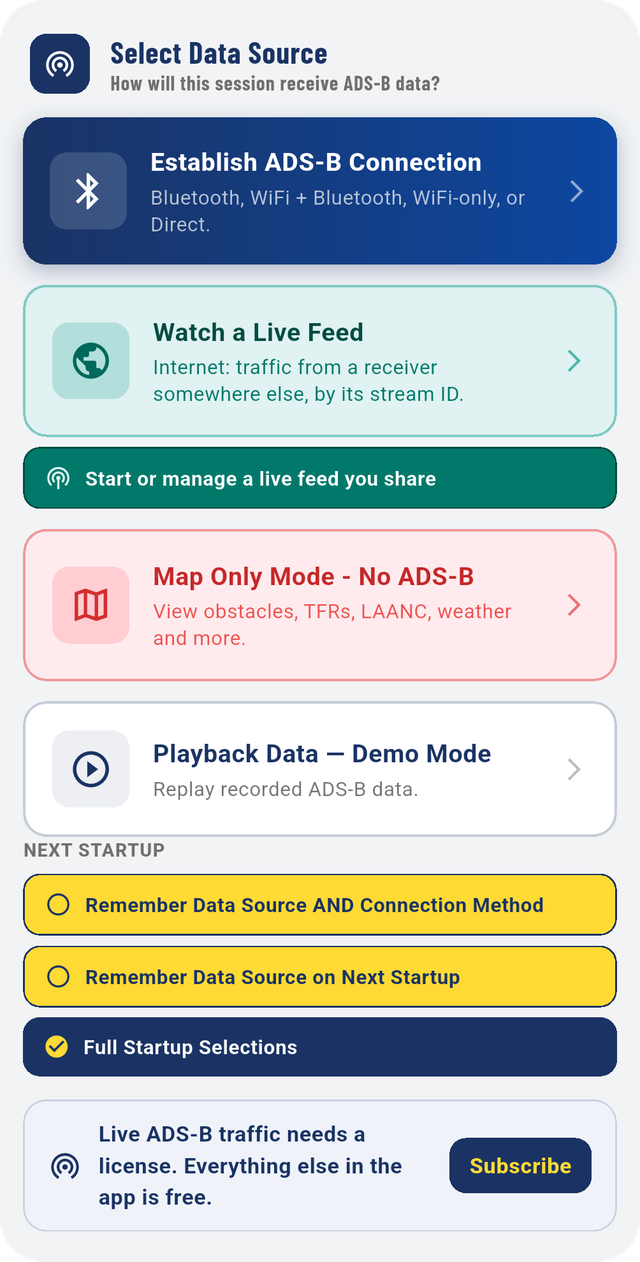
Below the choices, NEXT STARTUP sets what happens next time you open the app. See Skip this screen next time.
1.5Skip this screen next time
NEXT STARTUP has three choices. Tap one; the highlighted one is in use.
- Remember Data Source AND Connection Method: the next start goes straight to the same source and the same connection, for example your receiver over WiFi + Bluetooth. This is the quickest start once everything works.
- Remember Data Source on Next Startup: skips Select Data Source but still asks how to connect.
- Full Startup Selections: shows every choice each time. This is the setting when the app is new.
You can always get back to Select Data Source by long-pressing
 Receiver.
1.6Licenses and subscriptions
Only live ADS-B traffic from a receiver needs a license. The map, the airspace, obstacle and weather layers, recordings and playback are free.
- A pilotADSB receiver includes a free one-year license.
- After that, or without a pilotADSB receiver, you can Subscribe monthly or yearly from inside the app.
When you have no license, the app says so plainly: "Live ADS-B traffic needs a license. Everything else in the app is free." The Subscribe button sits next to that line.
The top of the map always shows your license status, next to License:.
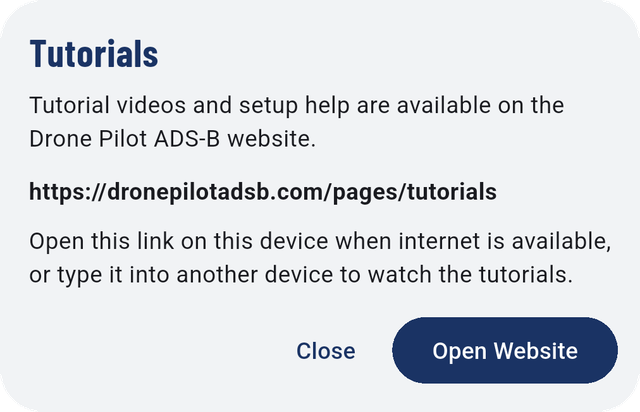
1.7Tutorial videos
Tap Tutorial for the address of the tutorial videos on the Drone Pilot ADS-B website. Open Website opens it in your browser. If you're offline, note the address (dronepilotadsb.com/pages/tutorials) and open it later on any device.