Chapter 12
Boundary Watch
Boundary Watch is two paid add-ons, each with its own license:
- Boundary Watch Event, for drone security at an event, run from your phone or tablet. Most of this chapter is about Event.
- Boundary Watch Premises, for a fixed site: a receiver watches the site's boundary by itself, 24/7 (Premises Setup).
Boundary Watch Event is for drone security at an event: concerts, stadiums, fairs, drone shows, patrols. You name your team's drones and the people flying them. Any other drone that comes inside your security area is a bogey: the app sounds an alarm, calls it out, shows where its pilot is standing, and alerts everyone on your security detail.
The everyday flight-safety alerts in the rest of this manual stay free. Boundary Watch adds teams, events and intrusion alerts on top.
12.1What Boundary Watch Event does
Boundary Watch Event (paid add-on)Needs a Remote ID receiver
- Teams. Group your pilots into teams, each with its own color. Your team's drones are drawn in that color and labeled with the pilot's name.
- Events. Set a start and end time and a security perimeter. While the event runs, the app watches the perimeter for you.
- Bogey alerts. A drone that isn't on your team and enters the perimeter sets off an alarm and a spoken callout, the map zooms to show it and its pilot, and an alert goes to everyone you've invited.
- Team callouts. You hear when each team drone takes off, loses signal, and comes back.
- Your security detail. Invite up to 20 people to each event, as Team Pilots or Security. They get the intrusion alerts on their own phones, and see your map when they have no receiver of their own.
- The Notify list. Up to 50 more people who get the intrusion alert by text or email, with no app at all.
- Event recordings. Keep the event's data, on your phone and in the cloud, to play back later.
It needs a pilotADSB receiver with Remote ID, because it works from the drones' Remote ID broadcasts. The phone or tablet the commander signs in on watches the perimeter and sends the alerts, so keep the app open on it, with the receiver connected, while the event runs.
12.2Buy and sign in
Boundary Watch Event (paid add-on)Needs internet
The license is $149.99 a year. It covers the commander (the person who runs events) plus 20 people in each event, with nothing extra to buy. The 20 are counted per event, so you can invite different people to different events. If one event needs more than 20, email support@pilotadsb.com.
This is the Boundary Watch Event license. Boundary Watch Premises is a separate license, $99.99 a year with a 1-month free trial (Premises Setup).
The license belongs to the commander's email address, not to a phone or a receiver. Use the email you bought it with when you sign in.
Try it free first. With your pilotADSB receiver connected, tap Start Free Trial: 3 days, 1 event, you plus 3 people, with every feature. Each receiver, email address and phone gets one trial, and an event during the trial has to end before the trial does. Purchases are final, so the trial is the way to try it.
Buying. Tap Buy Now to buy on pilotADSB.com, using the email you'll sign in with. On an iPhone outside the US App Store, the app shows the support email instead of Buy Now.
To sign in:
- Tap
 Drones on the right rail, then Sign In (next
to Close).
- The first time, read the license terms, tick I agree to the Boundary Watch Event License Terms and tap Continue.
- Enter the Email you bought it with, and Your name (it's shown on the invites you send). Tap Send link.
- Open the email on the same phone and tap Sign in. Or type the 6-digit code from the email, which works on a tablet that has no email on it. The link and the code last 30 minutes.
If you signed in with an email that has no license, the Drones window's button reads Account: tap it to sign out, then sign in with the right email.
A commander can be signed in on up to two phones or tablets at once; both run the same event. Signing in on a third signs the oldest one out, and it says the sign-in moved to another phone.
The app reminds you 45, 30, 14 and 7 days before the license ends. After the end date Boundary Watch Event keeps working for 14 more days, then turns off until it's renewed. Renewing on pilotADSB.com takes effect right away.
Once you're signed in, 1 Account on the setup page shows your email and the license date. Sign out is there too.
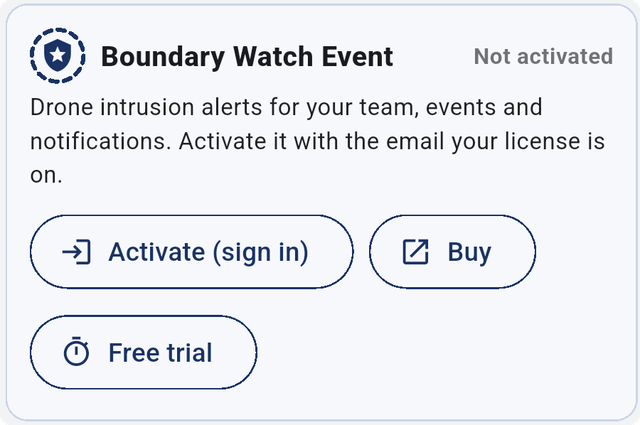
In Settings. Settings → ACCOUNT & LICENSE ends with a Boundary Watch Event card, under your receiver's own license. It shows Active until and the date, Free trial until, No license on your email, Not activated, or Needs to reach pilotADSB (Check in every 7 days). Its buttons are Event Setup (once it's active), Activate (sign in) or Account, and, until it's active, Buy and Free trial. When it's active, the Add-on Modules row above lists Boundary Watch Event.
12.3The Drones window
Boundary Watch Event (paid add-on)
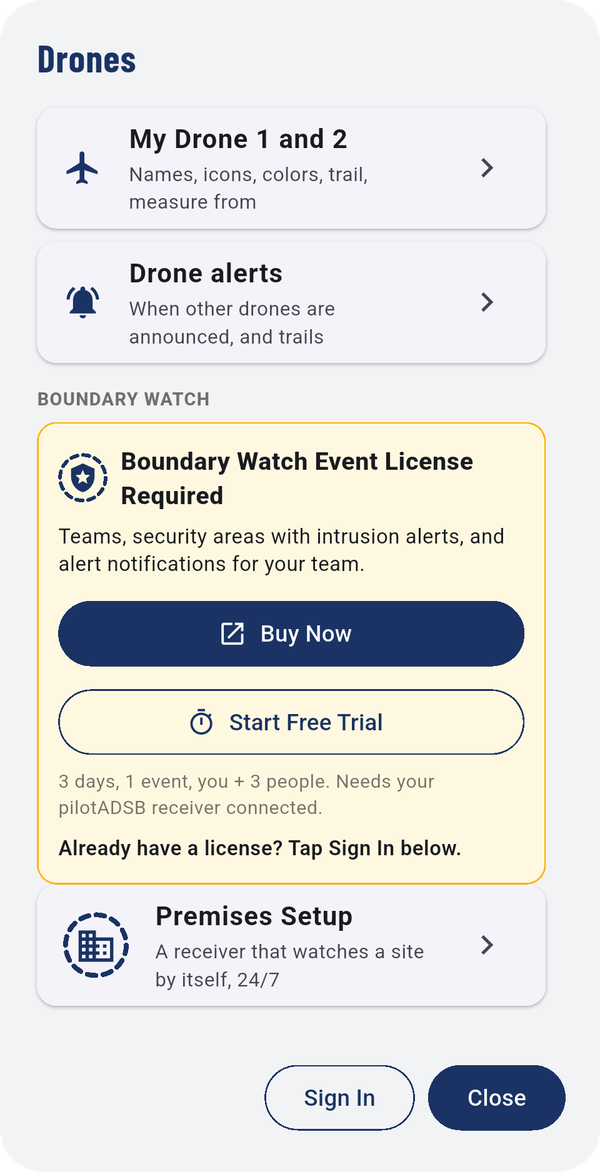
Drones brings your drone settings together in one place. On a new install it sits between Rules and Filter. If you had arranged your rail buttons before it arrived, you'll find it at the bottom of the right rail; drag the rail up to reach it, or move it with Arrange rail icons.
- My Drone 1 and 2 and Drone alerts: the same settings as in POI and Rules (Your drones: My Drone 1 and My Drone 2, Drone alerts).
- BOUNDARY WATCH:
- any event you've joined as a Team Pilot or Security, with your role and when it runs. Tap it for the event's details (On a team member's phone);
- Event Setup, once you're signed in with a license. It shows your event and ACTIVE NOW in red while it runs (Event Setup);
- before that, the license card, with Buy Now, Start Free Trial and Sign In (Buy and sign in);
- Premises Setup, for Boundary Watch Premises: a receiver that watches a site by itself, 24/7. It has its own license, $99.99 a year (Premises Setup).
12.4Event Setup
Boundary Watch Event (paid add-on)
Everything the commander sets up is on one page, in the order to do it. A green check means a step is done, and each step shows its live count.
| Step | What it's for | Done when |
|---|---|---|
| 1 Account | Sign in with the email your license is on (Buy and sign in) | You're signed in with a license |
| 2 Event | Name, date and time, perimeter, alarm and recording (Set up an event) | The event has a perimeter |
| 3 People | Invite your Team Pilots and Security (Invite your security detail) | At least one has joined |
| 4 Teams and drones | Team colors, who is flying, and their drones (Teams and team members) | There's a team with someone on it |
| 5 Notify list | People who only get the alert, by text or email (The Notify list) | At least one has confirmed |
| 6 Event recordings | Download the events recorded in the cloud (Record an event) |
A step stays gray until the one it needs is done: People needs an event, for example.
Under MAP OPTION is TFR fill (TFR fill).
The Event Setup windows fill the screen. When there's more below, a bar at the bottom says Scroll up to view rest of this page. The ? at the top right of each window opens its page of this manual.
12.5Set up an event
Boundary Watch Event (paid add-on)Needs a Remote ID receiver
- Event name (required), for example Riverfest 2026.
- Time zone, Start and End: the event starts and ends by itself at these times. A new event starts on the next hour and runs 4 hours. One event at a time per license.
- Security perimeter (KML): the boundary to protect, from your KML library (Your KML library), or tap the import icon next to it to load a KML or KMZ file. No KML? Circle Around Me and Draw on Map make one (Make a boundary without a KML). With None, every drone that isn't on your team is a bogey, however far away. On your second device, an event set up on the first shows Perimeter from your other device, and it's kept when you save.
- Alarm buffer beyond the KML and Awareness zone beyond the alarm buffer: see The security area.
- Team drone "signal lost" after N s: how long a team drone can go unheard before the app says its signal is lost, 5 to 30 seconds.
- Bogey drone alarm: the alarm sound for an intruder. ▶ plays it.
- Monitor: Planes and drones, or Drones only. With Drones only, no plane is shown or announced on your devices, sent to your people or recorded during the event.
- Record This Event, Where and The cloud keeps a recording for: see Record an event.
Tap Save. The event is saved on your phone and sent to pilotADSB.com so your security detail gets its alerts. Saving needs internet. End now stops a running event early, and Delete removes it.
A large perimeter file. A perimeter can have up to 5,000 points and 50 shapes. The app checks the file as soon as you pick it. With too many points you can Choose another file or tap Simplify KML: the app removes points the shape doesn't need, saves the result as a new KML named (simplified), and tells you how far the outline moved at most (never more than 10 feet). Your original file isn't changed. It's picked as the perimeter; tap Save to keep it.
While an event runs, the everyday drone alerts and the "Is this your drone?" question are turned off, so you hear only the event's callouts. The people on an event, and their details, are deleted 7 days after it ends.
12.6The security area
Boundary Watch Event (paid add-on)Needs a Remote ID receiver
The event watches three areas, from the inside out:
- The perimeter you loaded as a KML.
- The alarm buffer, a margin beyond the perimeter. A drone that isn't on your team, inside the perimeter or the buffer, is a bogey. Set 0 for inside the KML only: the alarm goes off the moment a drone crosses the line.
- The awareness zone, beyond the buffer. A drone here gets a single callout on your phone only, as a heads-up; nobody else is alerted. Set 0 to turn it off.
Both start at half a mile. Distances can be in feet, miles, meters or kilometers, up to 10 miles.
12.7Invite your security detail
Boundary Watch Event (paid add-on)Needs internet
People and invites shows how many have joined, out of 20, then JOINED and INVITED, NOT JOINED YET, and who has seen the test alert.
Add person:
- Choose Security or Team Pilot. A Team Pilot can also go straight onto one of your teams.
- Enter their Name, and a Mobile number or Email (at least one).
- Tick Also invite to the text alert list if they should also be on your Notify list (The Notify list).
- Tap Send invite. With an email, they get an invite email. Then Copy link copies their link, and Text it opens your phone's Messages app with the invite ready to send from your own number.
Each invite link is personal and works on one phone.
The ⋮ next to a person offers: - Send a new link (their old link stops working); - Make admin, for someone who has joined: they can then manage people, invites, join requests, the QR code and the test alert for you. Remove admin takes it back; - Remove from event.
Send test alert sends everyone a test, so you know their alerts get through before the event. Each person shows test seen once they've opened it.
To invite a whole list at once, tap Import list (Import a list of people).
12.8Import a list of people
Boundary Watch Event (paid add-on)Needs internet
Both People and the Notify list can take a list from a file instead of typing each person.
The file is a CSV or a text file, one person per line, for example a spreadsheet saved as CSV. A header row is optional. The app reads columns named Name (or First and Last), Email, Phone (or Mobile, Cell), and, for People, Role. Every person needs a name and an email or a 10-digit mobile number.
- Tap Import list and pick the file.
- Check the list. Untick anyone you don't want. On People, tap a role to switch it between Team Pilot and Security; anyone already on the event is left out.
- Anyone with a mistake is listed under NOT IMPORTED YET. Tap Fix them to correct each record in turn (the wrong field is yellow), or Copy list to fix them in your file.
- Tap Import.
People with an email get their invite or Confirm link by email. People with only a mobile number get it from your phone: Import finished shows a Text it button for each one. On the Notify list they show as Invited, has not joined yet until they join.
12.9Teams and team members
Boundary Watch Event (paid add-on)Needs a Remote ID receiver
Each team has its own color, and each team member is someone flying for you.
Teams and drones lists each team, with its people and their drones. Tap a person to change them; the pencil edits a team, and the trash can deletes it (its people go with it, and their drones are no longer team drones).
New team: - Team name (up to 24 characters). - Team color: one of the 8 drone colors. Each team needs its own; the app tells you if a color is already in use. - Show pilot positions: show where each team drone's pilot is standing. - Add from event People: tick the Team Pilots from your event who fly for this team. Someone already on another team moves to this one.
New team member: - Pick from event People fills in a person from your event. - Name or call sign, for example Steve or Team A1. This is the name the app shows on the map and speaks in callouts. - Phone (optional): lets you call them from the pilot location window. - Team: pick one, or make a New team.
12.10Match drones to their pilots
Boundary Watch Event (paid add-on)Needs a Remote ID receiver
Tell the app which drone each team member is flying. It remembers the drone by its Remote ID serial number, so you only do this once: the drone is recognized at every event after that.
- Turn on each team drone.
- Open Match drones. Every drone the receiver hears is listed.
- Tap a drone and pick who is flying it.
You can also tap a drone on the map and choose Add to My Team. A matched drone is drawn in its team color, labeled with the pilot's name.
Note
A drone whose Remote ID changes every flight can't be remembered. The app says so when you try.
12.11The Notify list
Needs internet
The Notify list is for people who only need to know: a supervisor, the venue manager, dispatch. They get the drone intrusion alert by text or email, with the drone's and the pilot's location. They don't need the app, and they don't count toward an event's 20 people. You have one list, used by all your events and your Premises site. It holds up to 50 people, and it works with either license, Boundary Watch Event or Boundary Watch Premises.
Nobody can be signed up for texts by someone else, so everyone confirms for themselves. Texts come from 866-253-7815.
Option 1, one person at a time. Your list has a join code: they text JOIN and the code to 866-253-7815, then reply Y. To make that easy: - Share how to join sends the steps from your phone, with a join link. On their phone, the link opens a text that's ready to send: they tap Send, then reply Y. - Show join QR shows a code they scan with their phone camera. It opens the same link. - Invite by text: type their Name and Mobile number and tap Invite. Your phone's Messages app opens with the join link; tap Send. They show on the list as Invited, has not joined yet until they join. - Add by email emails them a Confirm link. They get alerts only after they tap it.
Option 2, import a list from a file (Import a list of people). Emails get a Confirm link. Mobile numbers get the join text from your phone, one tap each: carrier rules let us text only people who joined themselves.
ON THE LIST shows each person as ACTIVE, PENDING CONFIRMATION or OPTED OUT. Only active people get alerts. Someone who doesn't finish joining drops off: after 24 hours if they texted JOIN but didn't reply Y, or after 14 days for an invite or an email they didn't confirm. Anyone can reply STOP to leave the list; after that, only they can rejoin, by texting JOIN and your code again. The trash can removes someone.
Links and pauses. Each person has two tick boxes, Map pin and Live map, for the links their alerts carry (Premises Setup). An event alert has no live map, so someone who chose only Live map gets the map pins for it.
Anyone on the list can reply PAUSE to stop their alert texts for 4 hours, or PAUSE and a number of hours, such as PAUSE 2, from 1 to 24. They reply RESUME to start them again sooner. The list shows Texts paused until and the time next to them. STOP still takes them off the list.
New join code stops the old code working, for example if it was shared too widely. People already on the list stay on it.
Type a List name (required) at the bottom, for example Southaven PD patrol. It's shown in the alert texts and emails. Tap Save & Close.
12.12Record an event
Boundary Watch Event (paid add-on)
A recording saves the event's data stream: every drone your receiver hears (and every plane, unless you monitor drones only), with its position, height and Remote ID details. Only data is recorded, never sound.
In the event window: - Record This Event: on for a new event. The recording starts when the event starts and stops when it ends. - Where: On this device, or On this device and in the cloud. - The cloud keeps a recording for: 30 days, 90 days, 180 days or 1 year. We email you 2 weeks before it's deleted.
If you didn't turn it on, tap  Record during the event and
choose On this device or This device and the cloud. It stops by itself
when the event ends.
A recording on your device is in Playback (The Playback Library). For the cloud copy, open 6 Event recordings: - Download saves it to your device, to open from Playback. The app checks it against its fingerprint, and tells you if any part doesn't match. - Keep longer adds 30 days to 1 year.
Only you can download an event's recording. Your people can't.
12.13Callouts during an event
Boundary Watch Event (paid add-on)Needs a Remote ID receiver
On the commander's phone you hear:
- "Steve is up and flying" when a team drone takes off.
- "Steve signal lost" when it goes unheard for longer than the event's setting, and "Steve signal back" when it returns.
- "Drone spotted", with its make, height and clock direction, for a drone in the awareness zone.
- "Bogey drone", for an intruder (When a bogey comes in).
The app also shows a message when the event starts and when it ends.
12.14When a bogey comes in
Boundary Watch Event (paid add-on)Needs a Remote ID receiverNeeds internet
When a drone that isn't on your team enters the security area:
- Your chosen alarm sounds, then the app says "Bogey drone" with its make, height, distance, clock direction, and whether it's flying toward you.
- The map zooms to show you, the bogey and its pilot. The bogey gets a red ring, and a red line joins it to its pilot.
- A red BOGEY DRONE bar appears with PILOT, which opens the pilot's location (Where the pilot is).
- Everyone on your security detail gets a DRONE INTRUSION alert on their phone, and an email if you added theirs.
- Everyone active on your Notify list gets a text or an email.
The alarm and the map work with no signal, so you can still radio the pilot's position. Alerting your team needs internet.
12.15Where the pilot is
Boundary Watch Event (paid add-on)Needs a Remote ID receiver
Pilot location shows who it is (your team member's name, or BOGEY and the drone's make), the coordinates with a Copy button, how far away and in which direction, and the street address when there's internet. For a team member with a phone number, Call rings them. Open in Maps gives you directions.
Pilot pins appear for team drones when the team's Show pilot positions is on, for any drone whose menu has Show pilot location on, and always for a bogey. A drone only reports its pilot's position if it broadcasts it.
12.16Let people ask to join
Boundary Watch Event (paid add-on)Needs internet
For people at the venue, show a QR code instead of typing their details.
- Tap Join Request QR. The code lasts 15 minutes. Text the link sends it instead.
- They scan it with their phone camera and enter their name, and a mobile number or email.
- Their request appears under WANTS TO JOIN in People and invites. Tap Approve as Security, Approve as Team Pilot, or Deny.
Nobody is in until you approve them.
12.17On a team member's phone
Boundary Watch Event (paid add-on)Needs internet
Team Pilots and Security need the Drone Pilot ADS-B app installed, but no license of their own. They join by tapping their invite link, or by scanning your QR code and asking to join. The app confirms You're in, and asks them to leave notifications on.
The event is then listed in their Drones window. Tapping it shows the commander, their role, and People if they're an admin.
The commander's view. While the event runs, a phone with no receiver connected shows the commander's map by itself: the team drones, any bogeys, and planes if the commander's receiver hears them. They can still zoom and use the weather and map layers. A Commander's view pill shows how many seconds behind it is, or not arriving if it stops coming in. The event's boundary is drawn on their map, and they can't change it. A Team Pilot with their own receiver connected sees their own traffic instead.
When a bogey comes in, their phone shows a red DRONE INTRUSION alert with the drone and its direction: - Pilot in Maps gives directions to the pilot. - Commander's view switches to the commander's map. - Show on map marks the drone and its pilot in red on their map for 10 minutes.
12.18Check in every 7 days
Boundary Watch Event (paid add-on)Needs internet
The app checks your license with pilotADSB.com whenever it has internet. If the commander's phone or tablet goes 7 days without reaching it, Boundary Watch Event pauses and the Drones window shows Boundary Watch Event: connect to check in.
Connect the device to the internet (your phone's hotspot works). Boundary Watch Event comes back on by itself, or tap Check now.
12.19TFR fill
Boundary Watch Event (paid add-on)
Security work often happens inside a TFR or a drone NOTAM area you've been cleared to fly in. Turn TFR fill off and those areas show only their outline, so the map underneath stays clear. The red outline always stays.
12.20Make a boundary without a KML
Under the boundary picker in Premises Setup, and the perimeter picker in Event Setup, two buttons make a boundary for you. Either way it's saved in your KML list and picked.
Circle Around Me draws a circle with this phone at the center. Stand at the spot you want watched, enter the Radius in ft or mi, from 100 ft to 2 miles, and tap Make Circle. The receiver hears most drones out to about a mile. The app says how close its GPS fix was, for example Made a 0.5 mi circle around you (GPS within 16 ft). The circle is named after your site or event and its size, such as Bench yard 0.5 mi. The app needs Location allowed for this.
Draw on Map opens a full-screen satellite map. Tap the map at each
corner of the area (pinch to zoom), then tap Done. It needs at least 3
corners. Undo removes the last corner and Clear starts over. It's
saved as
Change the size. When a circle you made is picked, the screen shows Radius: and its size, with Change. The new size keeps the same center, even if you've walked away. Then tap Update in Premises Setup to send it to the receiver, or Save in Event Setup.
12.21Premises Setup
Boundary Watch Premises (paid add-on)Needs a receiverNeeds a Remote ID receiver
Boundary Watch Premises watches one fixed site, such as a business, 24/7. The receiver does the watching: when a drone comes inside the site's boundary, the receiver sends the alert itself. No phone or app has to be running.
The receiver stays at the site, on mains power and on the site's WiFi with internet. It needs receiver software pilotADSBos 0.25.19 or later.
The license is $99.99 a year, with a 1-month free trial: one trial per email address and one per receiver. It's separate from the Boundary Watch Event license. One license covers one site and one receiver; a second site needs a second license. After the end date it keeps working for 14 more days. To buy, email support@pilotadsb.com.
Set it up. Connect to the receiver that will watch the site. The phone must reach it over WiFi, because the boundary is sent over WiFi. Then open Drones → Premises Setup:
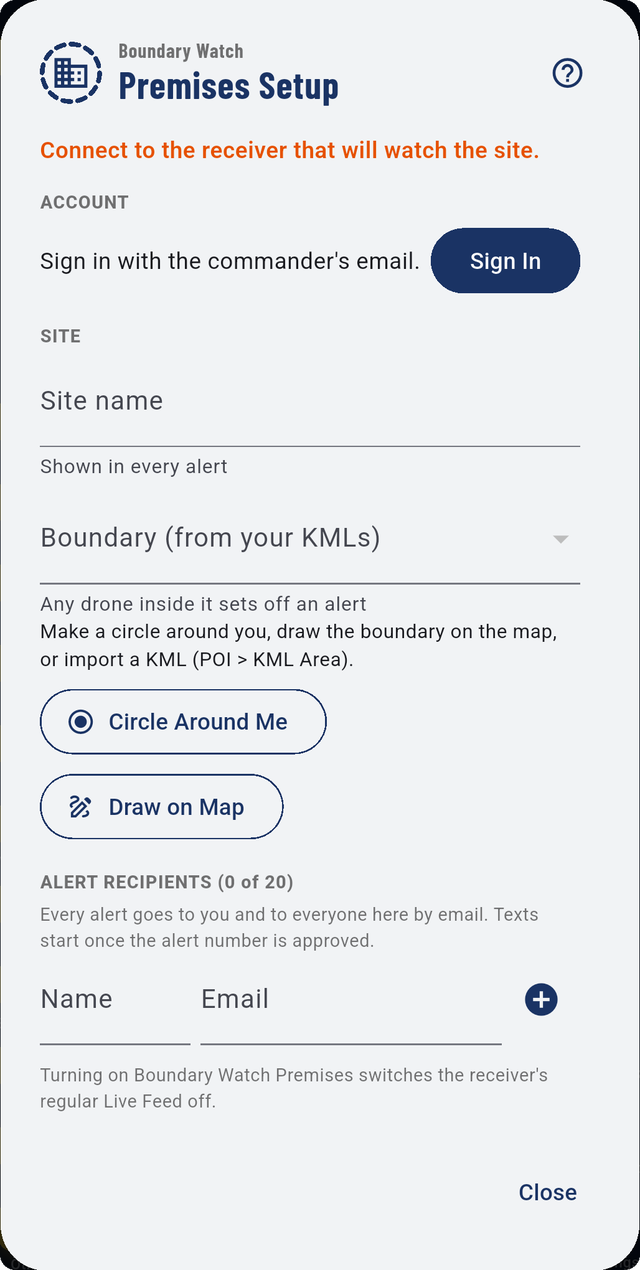
- ACCOUNT: tap Sign In with the commander's email (the same sign-in as Event). Then tap Start the 1-Month Free Trial, or sign in with the email your license is on.
- SITE: type the Site name. It's shown in every alert.
- Pick the Boundary (from your KMLs). Any drone inside it sets off an alert. Pick a KML from your library (Your KML library), or make one with Circle Around Me or Draw on Map (Make a boundary without a KML). There's one boundary, with no buffer zone; if the file has several shapes, the largest is used. It can have up to 5,000 points. With more, the app offers Simplify KML, the same as for an event perimeter (Set up an event); then tap Turn On to use the simplified file.
- ALERT RECIPIENTS: add up to 20 people, with a name and email. Two tick boxes under each person pick the links their alert carries (see The links below). For texts, add people to your Notify list under TEXT ALERTS.
- Tap Turn On. The app saves the site, registers the receiver and sends it the boundary.
After that the button says Update: tap it after you change the site name or the boundary. Turn Off stops the watching.
Turning on Boundary Watch Premises switches the receiver's regular Live Feed off.
The alerts. Each alert is emailed to you and everyone on the recipient list, and texted (or emailed) to everyone on your Notify list. Under TEXT ALERTS, the screen says how many it reaches, for example Every alert is also sent to your Notify list: 3 by text. Tap Notify list to add people (The Notify list). Someone on both lists gets one email, not two. Drones outside the boundary are tracked and recorded, but don't alert.
Each alert starts with one line that says what, where and when. In an email it's also the subject:
Drone A013 Mini 5 Pro Alert over Bench yard at Nov 4, 4:39 PM, 312 ft
- Drone A013 is the receiver's number for that drone, so you can tell two drones apart. The model is added when the drone's serial number identifies it, and the height when the drone sends one.
- Alert over the moment it comes inside the boundary, with no delay. Still over while it stays inside, and Departed when it leaves.
- With pilotADSBos 0.25.22 or later, a drone that leaves and comes back within 5 minutes is the same visit, so there's no second Alert over. Departed is sent once the drone has stayed out for 5 minutes, so it can arrive up to 5 minutes late, but the time in it is when the drone actually left. A drone that comes back after more than 5 minutes alerts again at once. Every crossing is still tracked and recorded. The 5 minutes is fixed; it isn't a setting.
The links. Under that line come the links each person chose with their two tick boxes. Both are ticked to start. - Map pin: one link to where the pilot is and one to where the drone is, each opening in Google Maps. If the drone isn't sending the pilot's position, it says not broadcast. - Live map: one link to a live map of the drone and the pilot (below). - Someone with neither box ticked still gets the map pins. You, the account holder, always get both.
A text starts with pilotADSB: and the same line. Each link is on its own line with a blank line between them, and the text ends Reply PAUSE to pause 4 hrs, STOP to opt out.
The live map. The Live map link (live.pilotadsb.com) opens in any phone or computer browser, with no app and no sign-in. On a satellite map it shows the site's boundary and each drone with its height, speed, heading and trail, the pilot's position with a dashed line to the drone and a Directions button, and the takeoff point. It says LIVE while data is arriving and Ended after the drone leaves. The receiver sends live data for 10 minutes after each alert, and the link works for 4 hours after the last alert.
Pause texts. Under TEXT ALERTS, Pause texts stops this site's alert texts for 1 hour, 4 hours or Until 7 AM (the site's time). Emails still go out, and the receiver keeps watching. While they're paused the section says Texts paused until and the time, and the button says Paused: tap it and pick Resume texts now to start them again. Each person can also pause their own texts by replying PAUSE (The Notify list).
On the map. While the phone can reach the receiver over WiFi and its Premises Watch is on, the map shows the site's boundary as an orange dashed line, with an orange Premises Watch on · site name label at the top right. Tap the label to open Premises Setup. The app checks the receiver once a minute. Away from the receiver, nothing is drawn.
Moving to another receiver. If the license is registered to a different receiver, for example after a repair, Turn On asks Move the license to this receiver? Tap Move It Here.
The status line at the top says what the receiver is doing:
| It says | What to do |
|---|---|
| Watching and the site name | Nothing. All is well. |
| Not watching. Boundary Watch Premises is off on this receiver. | Tap Turn On. |
| Not watching: no boundary is set. | Pick the boundary, then Update. |
| Not watching: this receiver is not registered yet. | Tap Turn On. |
| Not sending alerts: the Boundary Watch Premises license is not active. | Renew or buy. Drones are still tracked and recorded. After you renew, the receiver checks again every 15 minutes, so alerts can take that long to start. |
| Not watching yet: the receiver is waiting for GPS time. | Wait; it starts by itself. |
| Alerts are waiting: the receiver has no internet. | Fix the site's internet. The receiver keeps its alerts on its card, even through a power cut, and sends them when it's back. A late alert starts with DELAYED DUE TO SERVER OUTAGE - Verify current validity and shows both when it happened and how late it is. |
A red line under it means the alert server refused an alert, and says what to do: restart the receiver (unplug it for 10 seconds) and then email support, tap Update to register this receiver, or renew the license.